How to compress a PDF without losing quality
Compressors either shrink the pictures inside a PDF or turn every page into a picture. We ran both on three kinds of documents. One method took a 47 MB brochure to 287 KB with every word intact; the other made a text report five times larger.
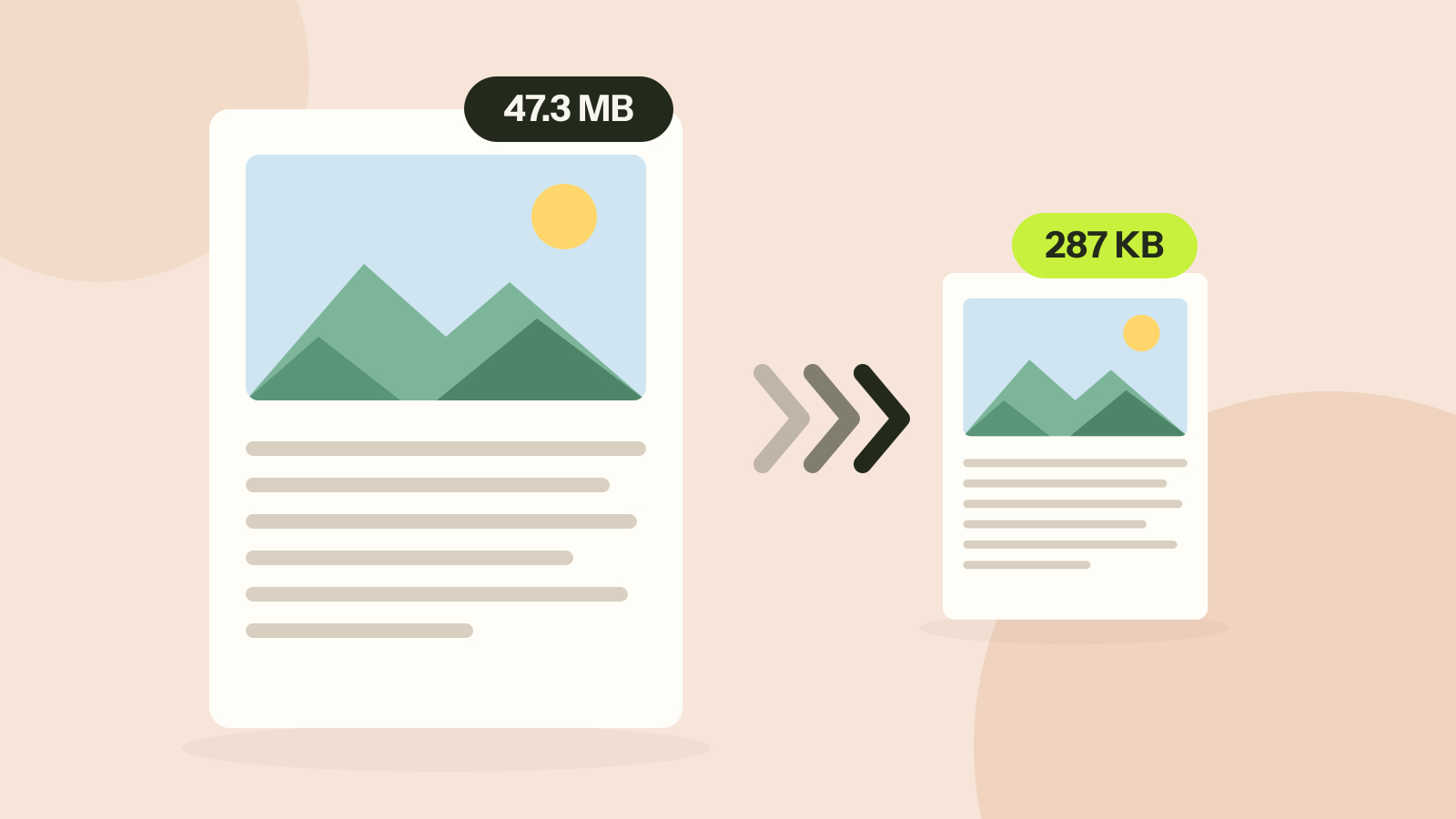
Tools that compress PDFs usually do one of two things, and the files they give are very different. One shrinks the pictures inside the PDF and leaves the text alone. The other turns every page into a picture. We ran both on three kinds of documents to see which one keeps the quality, and what quality even means for a PDF.
Two ways to make a PDF smaller
A PDF page is not a picture. Text is stored as characters and a font, lines and charts as drawing instructions, and only photos and scans as pictures. That is why the text in a good PDF stays sharp at any zoom, and why you can search it and copy from it.
- Keep text (sometimes called smart or structural compression) shrinks only the pictures. Each one is resampled to the resolution it is actually shown at on the page and saved again as JPEG. Text, links, bookmarks and form fields are not touched.
- Flatten pages (also called rasterising) renders every page as one big picture and builds a new PDF from those pictures. It treats every PDF the same way, but the text becomes pixels.
The PDF compressor has both, with Keep text as the default. We ran each method on the same three files.
The test documents
- A brochure: 8 pages of text with four photos straight from a camera, between 5,654 and 6,302 pixels wide, pasted in at full size. 47.3 MB.
- A report: 11 pages of text with two fonts embedded in full and no pictures at all. 745 KB.
- A scan: 10 pages scanned at 300 dpi in colour and stored as JPEG pictures, the way most office scanners and phone scanning apps do it. 9.4 MB.
Results
Every Keep text result still has all 13,531 characters of text. The flattened file has none.
| Document | Original | Keep text, 150 dpi | Flatten, 150 dpi |
|---|---|---|---|
| Brochure, 8 pages | 47.3 MB | 287 KB | 1.5 MB |
| Report, 11 pages | 745 KB | 745 KB | 3.6 MB |
| Scan, 10 pages | 9.4 MB | 2.2 MB | 2.8 MB |
The brochure is the classic oversized PDF. Its four photos take 99.96 percent of the file. Shown 6.6 inches wide on an A4 page, a 6,000 pixel photo has about 900 pixels per inch, six times more in each direction than a screen or an office printer can use, and 36 times more pixels in total. Bringing the photos down to 150 pixels per inch removed 99.4 percent of the file, and nothing else on the page changed.
Flattening the same brochure gave a file five times as big as Keep text: 1.5 MB against 287 KB. It turns the white paper and every letter into JPEG pixels too, and the sharp edges of letters are expensive to store as a picture.
The report shows the opposite trap. It has no pictures, so Keep text has nothing to shrink and the tool gives back the original. Flattening made it almost five times larger, 3.6 MB, and turned searchable text into pictures of text.
The scan is the one case where both methods make sense, since its pages are pictures already. Keep text was still smaller here, and it leaves alone anything that is not part of the scan, such as a text layer added by OCR, which flattening would throw away.
What you see
With Keep text, the letters are exactly those of the original: same font, same shapes, drawn fresh at whatever zoom you use. Flattening at 150 dpi freezes them at 150 pixels per inch. That looks fine at normal size and soft as soon as you zoom in or print.
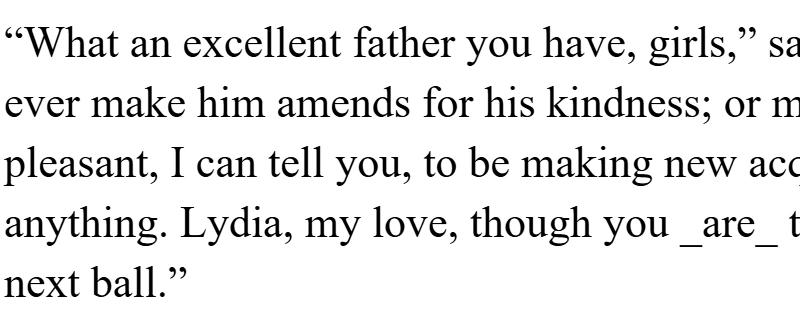
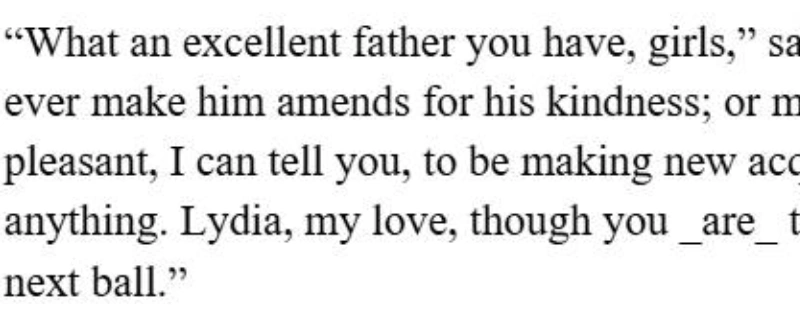
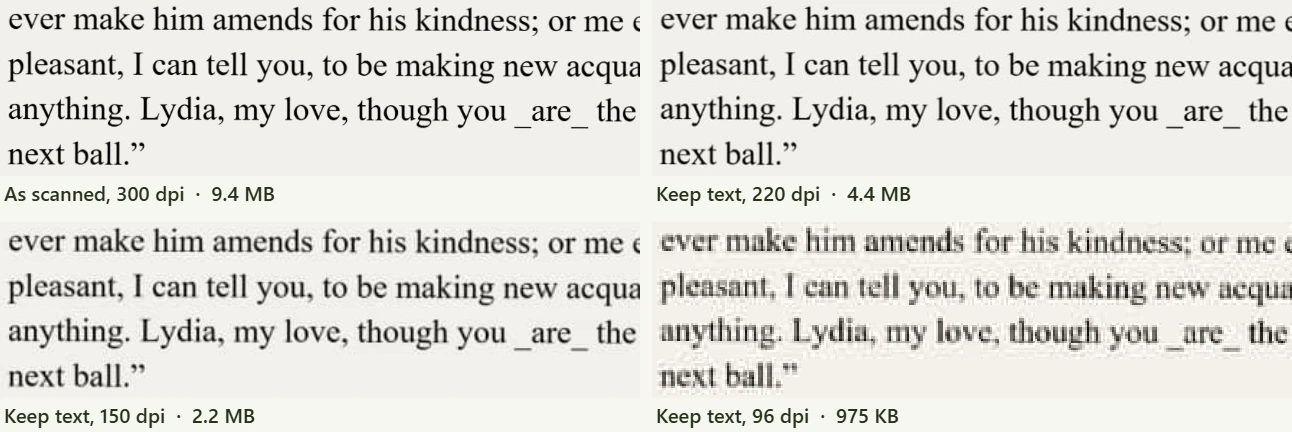
Pictures lose detail with either method, and that is the point: the detail removed is detail the page cannot show anyway. The question is how far to go. Here is the scan at four settings, enlarged.
Which resolution to choose
| Use | Resolution | Preset in the tool |
|---|---|---|
| Email, sharing, reading on screen | 150 dpi | Balanced |
| Upload forms with a strict size limit | 96 to 110 dpi | Small |
| Office printing | 150 to 200 dpi | Balanced or Sharp |
| Professional print, photo books | 300 dpi | Print-ready |
The JPEG quality slider matters less than the resolution. 70 is a sound default. Below 50, blocks start to show in photos, and above 85 the file grows quickly for little gain, the same curve we measured in our JPEG quality test.
For scans of plain documents, the grayscale switch does less than people expect. On our scan of black text on grey paper it saved only 3 percent at 150 dpi (2.17 MB against 2.24 MB), because a nearly grey page holds almost no colour information to begin with. Resolution is what moves the size.
When a PDF will not shrink
If a compressor barely changes your file, the size is probably not in the pictures. The usual reasons:
- Fonts embedded in full. Our report spends 89 percent of its 745 KB on two fonts. No compressor can remove them without changing how the text looks, but exporting again from the original document usually fixes it. We took that file apart in why is my PDF so big.
- Pictures that are already compressed. If the photos were reduced before, there is little left to gain, and the tool keeps your original rather than hand you a bigger file.
- Lots of pages. A 300 page manual is big because it is long. Splitting it or removing the pages you do not need does more than compression.
Flattening is rarely the answer in these cases. It only wins on documents that are pictures already, and even there it drops any text layer.
Step by step
- Open the PDF compressor and add your file. Nothing is uploaded: the work happens in your browser.
- Leave the method on Keep text and the resolution on Balanced (150 dpi).
- Compress and check the new size. Open the result and zoom in on a photo to make sure it still looks right.
- If it is still too big, try Small (110 dpi) or lower the JPEG quality to 60. For print, go the other way, to Sharp or Print-ready.
- Use Flatten pages only for scans, or when you want pages that cannot easily be edited or copied from, and keep the original.
Questions and answers
Does compressing a PDF reduce its quality?
With a compressor that keeps the text, text and drawings do not change at all. Pictures are reduced to the resolution you choose, which at 150 dpi looks the same on screen as the original.
What is the best DPI for a compressed PDF?
150 dpi for screens, email and office printing. 200 to 300 dpi for professional print. 96 to 110 dpi only when an upload limit forces it.
Why is my compressed PDF bigger than the original?
Usually because the pages were flattened into pictures. In our test that made a 745 KB text report 3.6 MB. Use a method that keeps the text.
Can I compress a PDF without uploading it?
Yes. The Tooloat PDF compressor runs in your browser, so the file stays on your device.
Tools in this article
More from the blog
How to redact a PDF properly
We hid the private details in a statement four different ways, then tried to get them back. Black boxes and a scanned copy gave up every detail. Only one method left nothing behind.
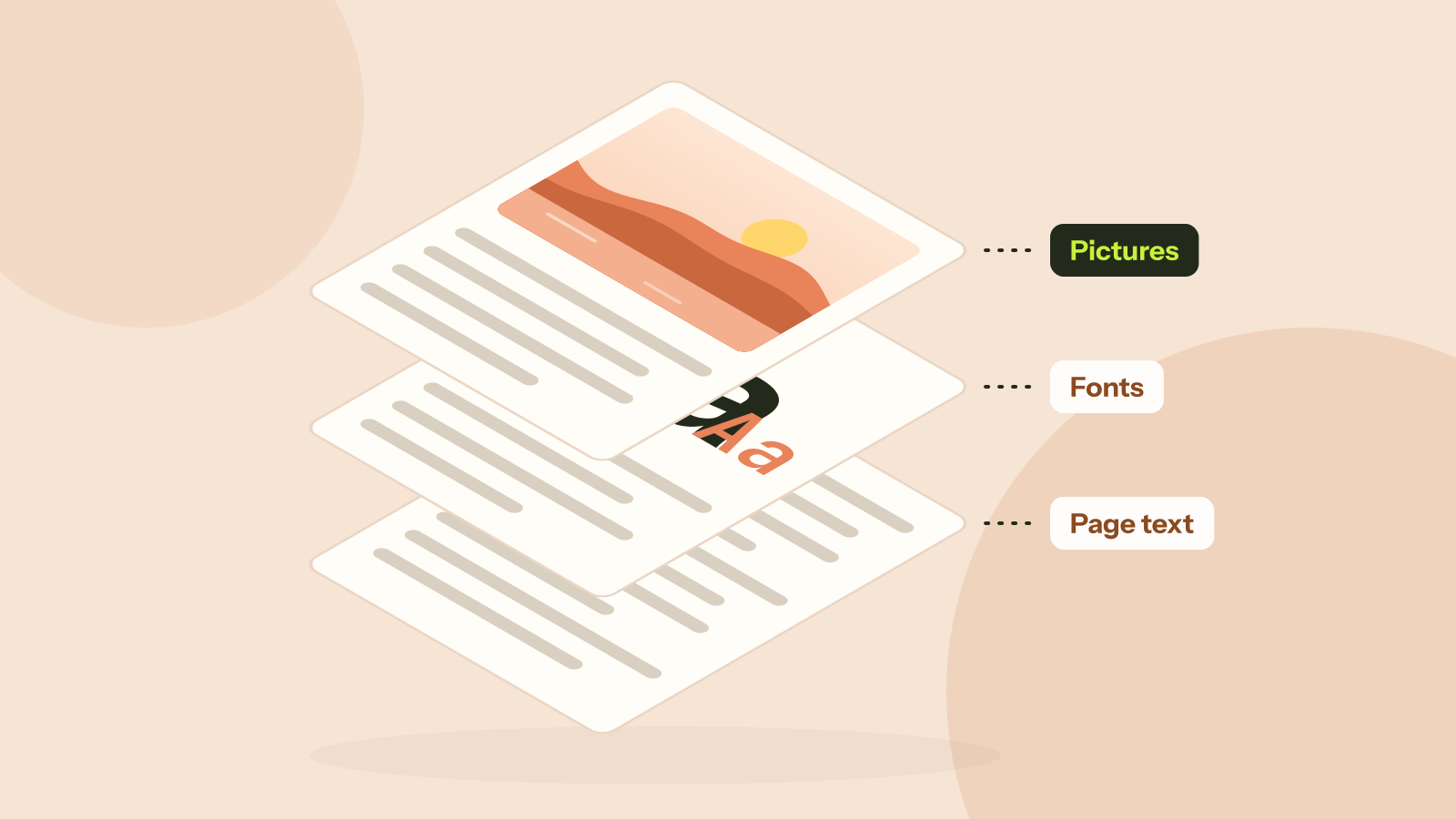
Why is my PDF so big?
Two PDFs with the same number of pages can differ in size a thousand times. We took five real kinds of PDF apart and measured what fills them: photos, scans, fonts or drawings. Each cause has its own fix.
JPG, PNG, WebP or AVIF: which format to use
We saved six photos and a graphic in all four formats at the same visual quality and compared the sizes. The newer formats win on photos by a wide margin, but each format still has a job.