How to compress a video: what each setting really does
A video's size is its bitrate times its length, and every setting works through that. We compressed two full HD clips at every setting and measured the size and quality of each result, including the usual advice to lower the resolution.
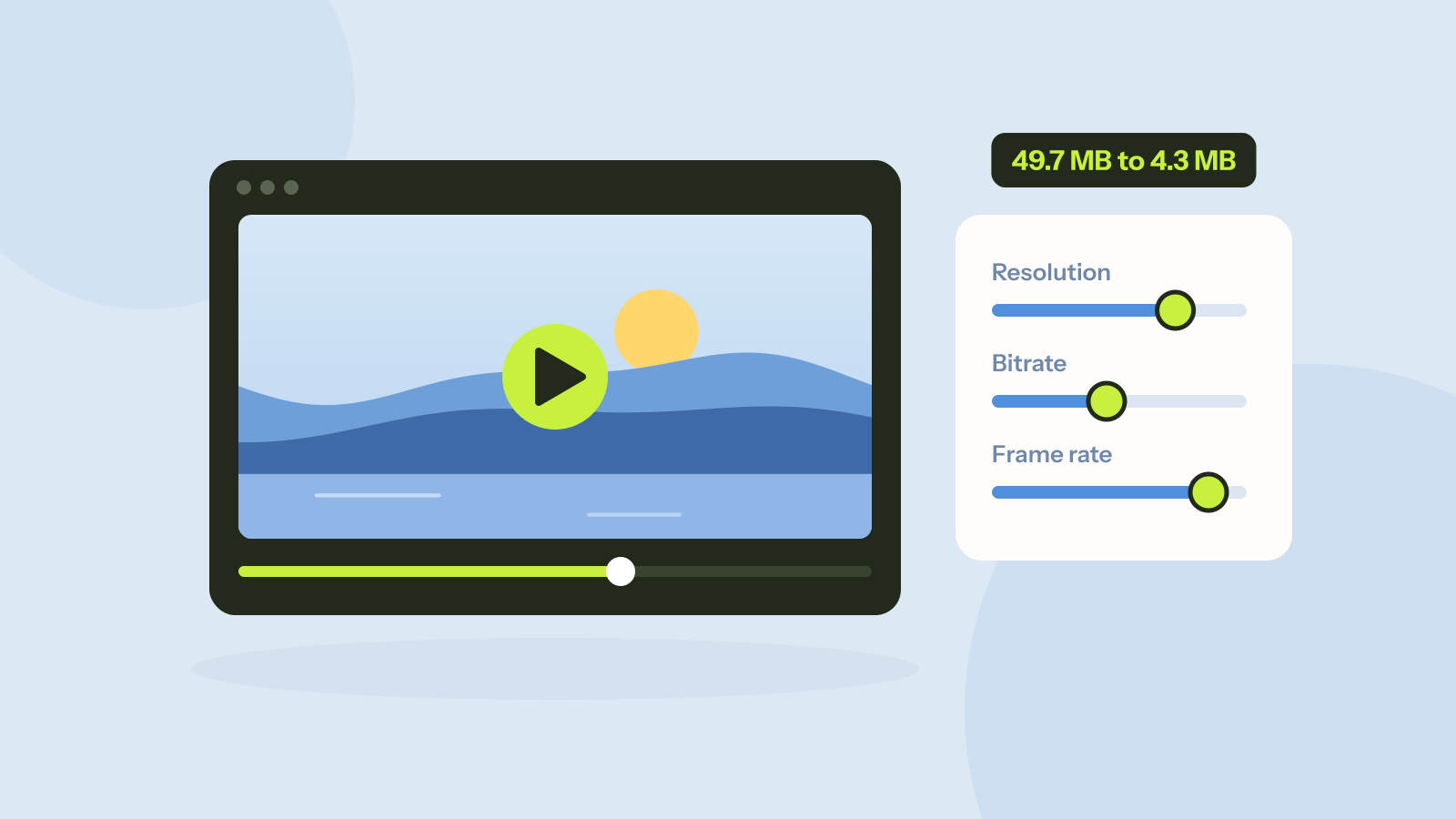
Phones record video at bitrates meant for editing, not for sending: a minute of full HD is easily 100 MB. Most of that can go without anyone noticing, but which setting to change is not obvious. We compressed two clips at every setting of our video compressor and measured the size and the quality of each result.
Size is bitrate times length
The bitrate is how much data a video uses per second, in megabits per second (Mbit/s). Multiply it by the length and divide by 8 and you have the size in megabytes. At 1 Mbit/s, a minute of video is about 7.5 MB; at 5 Mbit/s, about 37 MB. Resolution, frame rate and quality presets only change the size because they change the bitrate the encoder aims for, or how much it needs.
| Video bitrate | Size per minute | Typical use |
|---|---|---|
| 0.5 Mbit/s | 3.8 MB | Screen recordings, small previews |
| 1 Mbit/s | 7.5 MB | 720p for phones and chat |
| 2.5 Mbit/s | 19 MB | 1080p for sharing |
| 5 Mbit/s | 38 MB | 1080p with lots of movement |
| 15+ Mbit/s | 110+ MB | Phone camera originals |
The test
We made two 10 second clips in full HD (1920 × 1080) at 30 frames per second: a slow pan across a photo of a mountain lake with light grain, like phone footage, and a screen recording of an app with text being typed and a chart growing. Each went through the video compressor at its four quality levels, as MP4 (H.264) and as WebM (VP9), at 720p, at half the frame rate and with two size targets. We compared eight frames of every result with the original frames using SSIM, a score of how alike two pictures look, where 1 means identical.
Quality presets: the camera clip
The source was 49.7 MB. Very high is six times the size of Small files.
| Setting | MP4 size | MP4 SSIM | WebM size | WebM SSIM |
|---|---|---|---|---|
| Small files | 2.36 MB | 0.940 | 2.01 MB | 0.935 |
| Balanced | 4.33 MB | 0.945 | 3.29 MB | 0.941 |
| High | 7.58 MB | 0.951 | 5.83 MB | 0.947 |
| Very high | 14.71 MB | 0.958 | 8.56 MB | 0.952 |
Going from Small files to Very high multiplied the file by six and moved the score from 0.940 to 0.958. That is a real difference on a large screen, mostly in fine texture such as the trees, but a small one for the price. The grain in the clip is the reason the scores stay below the source even at Very high: random noise is the hardest thing to compress, and encoders smooth part of it away. Videos shot in low light are big for the same reason.
WebM was about a quarter smaller at every level, with scores a little lower. Our presets give VP9 a lower bitrate than H.264, since it is the more efficient codec, and the result was close to an even trade. MP4 remains the better choice for sharing, because it plays everywhere.
Content matters more than settings
The screen recording tells a different story. At every setting the 10 seconds of full HD came out under 1 MB, between 585 KB at Small files and 911 KB at Very high, with scores of 0.999 and above. Most of the screen does not change from frame to frame, and video codecs only store what changes. The encoder simply used less than its budget.
This is why a fixed rule such as "1080p needs 5 Mbit/s" is misleading. A talking head in front of a plain wall needs far less than a handheld clip of a crowd at night. If a video looks fine at Small files, keep that setting.
Resolution or bitrate?
Lowering the resolution is the usual advice. We compared two ways of getting the camera clip to about 2 MB, judging both at full HD size, as they would be seen on a laptop:
| Version | Size | SSIM at 1080p |
|---|---|---|
| 720p at Balanced | 1.92 MB | 0.936 |
| 1080p with a 2 MB target | 1.80 MB | 0.936 |
| 1080p at Small files | 2.36 MB | 0.940 |
They came out the same. A lower resolution gives the encoder fewer pixels to describe, but each one is then stretched on screen. Choose 720p when the video will mostly be watched on phones or when the target is very small, and keep 1080p when text or fine detail must stay readable on a big screen.
Frame rate barely matters for size
Halving the frame rate from 30 to 15 frames per second made the file only 4 percent smaller, 4.16 MB against 4.33 MB. The bitrate is set per second, so the encoder spends the same budget on half as many frames and each frame gets better: the score rose to 0.951. Lower the frame rate only for very small targets or for content without much movement, such as slides, where the smoother motion is not missed.
Compressing to a size limit
When a site or app has a limit, set the size directly. The compressor works out the bitrate from the size and the length of the video, keeps a small margin, and subtracts the audio. Hardware encoders do not always hit a bitrate exactly, so it checks the result and encodes again with a corrected bitrate when the file comes out too large, up to three times.
In our test, the 5 MB target landed at 4.95 MB on the first pass. The 2 MB target came out above the limit at first and landed at 1.80 MB on the second pass. If a video is already under the limit, the original is kept untouched.
Step by step
- Open the video compressor and add your videos. They are processed in your browser by the video encoder built into your device, so nothing is uploaded.
- For a limit, choose Target size and pick a preset or type the size in MB. Otherwise choose a quality level, starting at Balanced.
- Keep MP4 unless you know the video will only play in browsers.
- Lower the resolution if the target is very small or the video is for phones, and lower the audio bitrate for speech.
- Compress, then watch the result before you send it.
To cut a video shorter first, which saves more than any setting, use the video trimmer. To change format without worrying about size, the video converter does that.
Questions and answers
How can I compress a video without losing quality?
Every compression loses something, but much of it is invisible. In our test, Balanced kept a score of 0.945 at a twelfth of the size of the source, while Very high cost more than three times as much for 0.958.
What is a good bitrate for 1080p video?
It depends on the content. Our camera clip used about 3.6 Mbit/s at Balanced, while a full HD screen recording needed under 0.8 Mbit/s at every setting.
Does lowering the resolution make a video smaller?
Yes, with quality presets: 720p at Balanced was 44 percent of the 1080p size. At the same file size, though, 720p looked no better than 1080p at a lower bitrate.
Does lowering the frame rate reduce file size?
Very little when the bitrate is fixed. Going from 30 to 15 frames per second saved 4 percent in our test; the encoder used the same budget on fewer, better frames.
Tools in this article
More from the blog

GIF vs MP4 vs WebM: the same clip in each format
We turned a camera clip and a screen recording into a GIF, an MP4 and a WebM at the same size. The GIF was up to 16 times larger and still looked worse. Here is why, and when a GIF is still the right choice.
Removing background noise from audio: what works
We mixed five kinds of noise into real recordings of people speaking and cleaned them with a small neural network that runs in the browser. Steady noise almost disappeared. Sudden sounds and music were another story.

How to redact a PDF properly
We hid the private details in a statement four different ways, then tried to get them back. Black boxes and a scanned copy gave up every detail. Only one method left nothing behind.